Create sellers
As a partner, you create each seller once and get back its seller_payme_id (MPL). Store it: you send it on every call for that seller. Only partners can create sellers, with their payme_client_key.
There are two ways to onboard a seller:
- API: collect the seller's details on your platform and call Create a seller. Then upload the seller's documents with Upload seller files.
- PayMe's onboarding pages: send the seller the
seller_dashboard_signup_linkthat Create a seller returns. The seller fills in the rest of the details and uploads documents there. The pages can carry your logo and colors: contact PayMe to set this up.
Before you start
- PayMe sets which fields are required for your account. A missing required field returns error
19, with the field name instatus_additional_info. - Create a seller is limited to 5 calls per minute per IP. Over the limit, you get HTTP 429 with error
998. seller_emailmust be unique among your sellers (error150).- In the sandbox, use the test values listed on Create a seller, such as bank
54.
After you create a seller
- The seller can take payments right away. Payouts wait until PayMe approves the seller (
seller_approvedon List sellers). See Withdrawals. - Approval needs the seller's documents. The codes are on File types.
- PayMe sends a seller callback to your default callback URL when the seller is created, updated or approved.
What the onboarding pages ask for
This is an example of PayMe's onboarding page. The steps can be split over several screens.
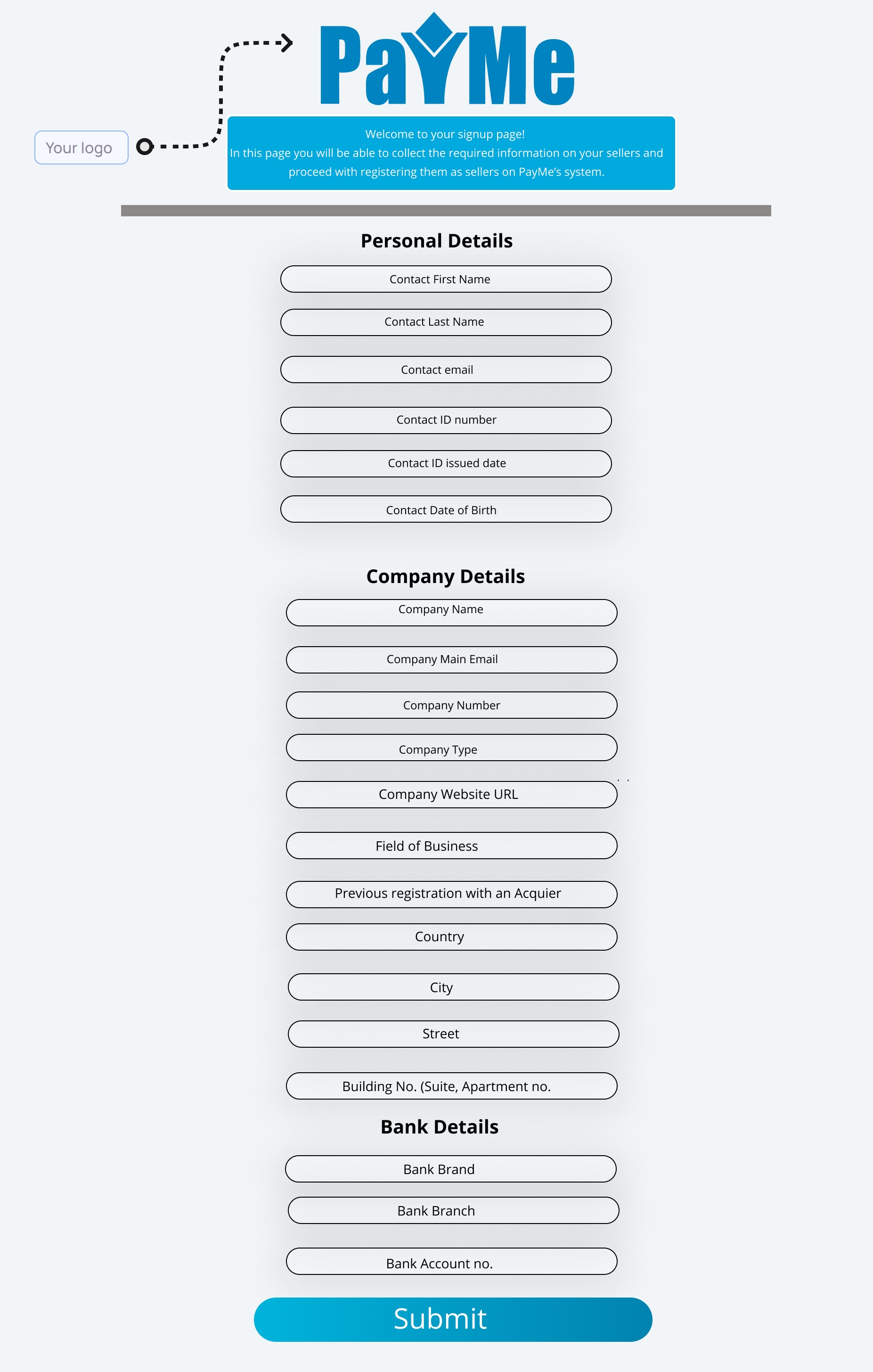
Personal details
| Field | Description |
|---|---|
| First name | The contact person's first name |
| Last name | The contact person's last name |
| ID number | The contact person's national ID number |
| Email address | The seller's email address. It must be unique among your sellers |
| Phone number | The business phone number |
| Contact phone | The contact person's phone number |
| Contact email | The contact person's email address |
| Password | The seller's password for the PayMe dashboard |
Company details
| Field | Description |
|---|---|
| Company name | The business's legal name |
| Registration number | The business's registration number |
| Company type | One of the seller incorporation types |
| Acquirer registration | The seller's existing business code on the acquirer's network, if it has one |
Bank account details
| Field | Description |
|---|---|
| Bank code | A code from Banks in Israel |
| Bank branch | Branch number |
| Bank account number | Account number |